Sample data from Weir’s demo household, with home guessed from your time zone. The app goes by your own NextDNS traffic and settings.
allowed 0blocked 0
Last 24 Hours
What Weir does
NextDNS is a DNS service. Before a device can open a website or use an app, it asks a DNS server where to find it.
NextDNS answers, unless your settings say to block that address: an ad server, a tracker, a malware site or anything on your own denylist. It does this for every device you set up to use it, on any network.
Weir connects to your NextDNS account, shows you those questions and answers on your Mac as they happen, and lets you change what gets blocked.
1Connect your accountPaste the API key from your NextDNS account page. Weir keeps it in your login keychain.
2Watch your networkQueries from every device on your NextDNS profile arrive as they happen: on the world map, in the live log and in Insights.
3Change what’s blockedBlock or allow any domain you see with a click or a drag. When a site breaks, Weir finds the block that did it.
Every screen in Weir
The tour follows the app’s own sidebar. Click any section to see it.
Every screenshot uses Weir’s sample household: a MacBook Pro, an iPhone, an iPad, an Apple TV in the living room, a work laptop and a Pixel phone.
HHome3f9a2cDEMO
Live0 / min0 held back since you opened Weir
Watch
Flow
Where your traffic goes
A world map with a channel from home to each country your queries resolve in, thicker for a bigger share.
Live queries travel along them as droplets, and blocked ones splash against the ring around home. Click a country to see its busiest domains, pick a device to see only its traffic, or click a bar on the tide below to focus on that moment.
Weir’s Flow screen: a map of Europe with blue channels curving from a ring around home in London to countries such as the United Kingdom, Germany, France and Sweden, each with a flag label, and one running off the left edge to the United States. A Summary panel on the right shows queries, blocked queries and top destinations, and a bar chart of allowed and blocked traffic runs along the bottom.Weir’s Flow screen with the United States picked. The panel on the right says 21% of the traffic that flowed out went there, and lists its busiest domains, such as configuration.ls.apple.com and weatherkit.apple.com.
Stream
Every query, as it happens
The live query log from every device on the profile, newest first. Blocked rows name the blocklists that held them back, and hovering any row offers Block or Allow. Select a query to see its device, protocol, record type and the country it resolves in.
Weir’s Stream screen: a list of DNS queries from devices such as MacBook Pro, iPhone and Pixel, with blocked rows tinted pink and labelled with the blocklists that caught them. A blocked query is selected, and the panel on the right shows its device, protocol and the reasons it was held back.
Insights
Patterns over time
Four headline numbers and a chart of allowed and blocked traffic, for the last hour up to the last 90 days.
Below them are 11 cards, including Top Domains, Most Blocked, Devices, Destinations, Who Hears From You and Security Posture. Click a device to see only its numbers, here and on the map.
Weir’s Insights screen: headline tiles for Queries, Held back, Encrypted and Devices above a blue and pink traffic chart, followed by cards for Top Domains, Most Blocked and Most Contacted Sites.Further down Weir’s Insights screen: cards for Blocked By, Devices, Destinations, Who Hears From You, Security Posture, Protocols, Query Types and Networks.
Wrapped
Your year in water
Your network’s year, or its last 30 or 7 days, as a story of portrait cards that move on by themselves, ending on a poster you can save, copy or share.
Weir’s Wrapped screen: a pink story card headed Your network’s personality, with a glowing orb, the name The Reservoir, a line about why it fits, and tiles for 29% held back, a 21:00 rush hour, 6 countries and ±11% day to day.
Protect
Security
Threat protection
All 12 of NextDNS’s threat protections, each with a one-line explanation, under a ring that counts how many are on.
Below them, block whole top-level domains such as .zip, by typing one or clicking a suggestion. Changes apply as you flip them, and if NextDNS refuses one, Weir switches it back and says why.
Weir’s Security screen: a ring reading 10 of 12 protections on, above switches with coloured icons for Threat Intelligence Feeds, AI-Driven Threat Detection, Google Safe Browsing and the other protections. Block Newly Registered Domains and Block Dynamic DNS Hostnames are off.
Privacy
Trackers and blocklists
The blocklists on your profile, each with its domain count and when it was last updated.
Add a Blocklist opens all 84 lists NextDNS offers, with 12 recommended ones first and a search field. Below are native tracking protection for 8 makers, including Apple, Samsung and Amazon Alexa, and a switch that unmasks trackers posing as a site’s own subdomains.
Weir’s Privacy screen: three blocklists, NextDNS Ads & Trackers Blocklist, OISD and HaGeZi Multi PRO, with their domain counts, then Native Tracking Protection switches for Apple, Windows, Samsung, Amazon Alexa, Huawei and Xiaomi.
Parental Control
Services and categories
Click a tile to block one of 43 apps and services, such as TikTok, Roblox or YouTube, on every device that uses the profile.
Right-click a blocked tile to pause it without removing it. Above the grid are 7 categories and switches for SafeSearch, YouTube Restricted Mode and blocking VPNs and other workarounds.
Weir’s Parental Control screen reading Everything is reachable, with switches for Enforce SafeSearch, YouTube Restricted Mode and Block Bypass Methods, then seven categories such as Gambling, Dating and Online Gaming, all switched off.
Lists
Denylist
Always blocked
Domains blocked on every device whatever the blocklists say, along with everything under them.
Paste one domain or a whole list, and Weir trims full web addresses down to the domain. Switch an entry off to pause it, or drag a domain here from Stream, Flow or Insights.
Weir’s Denylist screen headed Always Blocked, with a field for adding domains and three entries: taboola.com, outbrain.com, and tiktokv.com marked as paused.
Allowlist
Always allowed
Domains that always get through, even when a blocklist disagrees. Adding a domain here takes it off the denylist, and the other way round. Domains you let through for a while show a countdown and a Keep button.
Weir’s Allowlist screen headed Always Allowed, with four entries: cdn.cookielaw.org and ct.sendgrid.net, each allowed for now with a countdown to when it is blocked again and a Keep button, then sentry.io and app.link.
Profile
Settings
Logs and performance
The settings of your NextDNS profile itself.
Choose whether NextDNS keeps logs, for how long (1 hour to 2 years) and where (United States, European Union, United Kingdom or Switzerland), and turn on the block page, Cache Boost and CNAME Flattening. You can also export every log as a CSV file or clear them all.
Weir’s Settings screen for the Home profile: its name and ID, then Keep Logs switched on, kept for 3 months and stored in the European Union, followed by switches for the block page, Anonymized EDNS Client Subnet, Cache Boost and CNAME Flattening.
Setup
Connect your devices
Checks through test.nextdns.io whether this Mac is using NextDNS, and with which profile.
If it isn’t, Protect This Mac… makes a DNS-over-HTTPS configuration profile and opens it in System Settings. Below are the profile’s endpoints and linked IP, each with a copy button, and links to setup guides for other devices.
Weir’s Setup screen: a shield reading This Mac is protected by “Home”, encrypted with DOH, with a Check Again button, above copyable endpoints for DNS-over-HTTPS, DNS-over-TLS and IPv6, the linked IP and links to setup guides for other devices.
Something broke?
Find the block that broke a site, and let it through for 15 minutes
A blocklist sometimes catches a domain that a site needs, such as its sign-in or a captcha.
One click in Weir’s menu bar panel shows what NextDNS held back on this Mac in the last minute, with the likely culprits first and the reason for each. When NextDNS can’t tell this Mac apart, such as when your router sends its queries, it shows every device on the profile instead, and says so.
Allow 15 min, or choose 1 hour, all of the site for 15 minutes, or Always Allow.
NextDNS’s allowlist entries don’t expire, so Weir blocks the domain again itself when the time is up, even with the window closed or after the Mac wakes from sleep.
A notification then offers Allow 15 More Minutes or Always Allow.
20.9k
Sample data from Weir’s demo household. Try Allow 15 min, or the menu beside it.
Wrapped
Your network’s year, told one card at a time
Wrapped reads what NextDNS has logged and turns it into a short story.
It covers how many questions your devices asked, what the weir held back, your rush hour and your biggest day, the tracker that knocked most and the countries your queries reached. It ends with a personality for your network, such as The Moonlit Tide or The Steady Canal, and a 1080 × 1920 poster you can keep.
Choose this year, the last 30 days or the last 7 days.
Cards move on by themselves. Click or use the arrow keys to step through, and press Space to pause.
Hear your day plays your network’s typical day as a tune of about ten seconds: one note for each hour, higher when it was busier.
Cover · 1 of 14
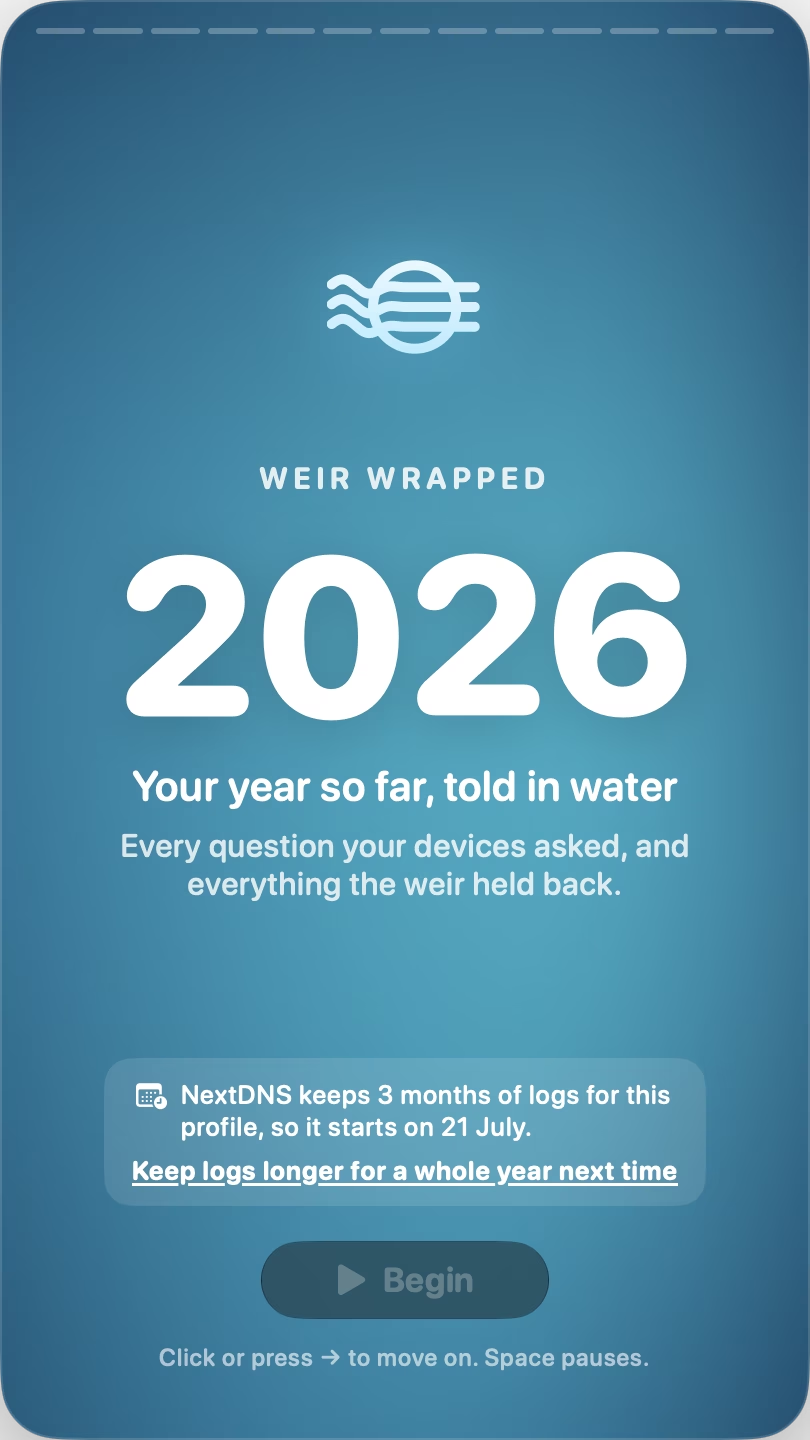
The cover of Weir Wrapped: 2026, Your year so far, told in water. A note says NextDNS keeps 3 months of logs for this profile, so the story starts on 21 July. Below it is a Begin button.The flow: this year, your devices asked 6,587,888 questions. That’s one every 1.2 seconds, or 330 litres of water drop for drop: about 2 bathtubs.Held back: the weir held back 1,896,343 queries that never reached your devices, 29% of all queries and about 21,070 a day. On 6 September it held back query number 1,000,000.Your tide: your network’s rush hour is 21:00, on a 24-hour clock of bars. It’s quietest at 03:00 and Sundays run busiest. At the bottom is a Hear your day button.Day by day: your biggest day was Sunday 9 August, with 92,927 queries, above a grid with a square for each day from 21 July to 19 October. The calmest was Monday 12 October, with 57,668.Your top sites: apple.com with 891,399 queries, then icloud.com, google.com, gstatic.com and icloud-content.com.Most persistent: app-measurement.com, a Google tracker, knocked 137,724 times and never got in, about 1,530 a day. Also waiting at the weir are xp.apple.com and three more Google domains.Who heard from you: of everything that got through, Big Tech heard 72%. Apple 37%, Google 22%, Meta 6.6%, Amazon 3.9% and Microsoft 3.4%.Around the world: your queries flowed to 6 countries, led by the United Kingdom with 51%, the United States with 21%, France and the Netherlands. The farthest was the United States, 3,677 miles away.Your MVP: the MacBook Pro asked 31% of all your questions, 2,109,807 of them, ahead of the iPhone, iPad, Work Laptop, Living Room and Pixel. Trackers chased the Pixel hardest: 39% of its queries were held back.Your shields: the hardest-working was the NextDNS Ads & Trackers Blocklist, with a hand in 75% of everything held back, followed by HaGeZi Multi PRO, OISD and Native Tracking for Apple and Windows. 3,304 threats were stopped before they could load.Your network’s personality: The Reservoir, with a glowing orb and the line It holds back more than most: 29% of everything never got through. Tiles show 29% held back, a 21:00 rush hour, 6 countries and ±11% day to day.The summary card: The Reservoir, with 6.6m questions asked, 1.9m held back, a 21:00 rush hour and 6 countries reached, the top sites and most persistent domains, the day as 24 bars, the MacBook Pro as MVP and the United Kingdom as most visited.A Weir Wrapped poster: the network’s personality, tiles for questions asked, held back, rush hour and countries reached, short lists of top sites and the most persistent blocked domains, a 24-hour bar strip, and the footer Made with Weir for NextDNS.
Weir Wrapped for the demo household. Click the right of a card to move on and the left to go back.
In the menu bar
Today’s numbers, without opening the window
A small ring in the menu bar fills with today’s block rate, next to the number of queries held back so far.
Click it to see the rest of today: how it compares with this time yesterday, an hour-by-hour strip, the domains that tried hardest and the latest blocks. Hover any of those domains and click Allow to add it to your allowlist.
Next to the ring: today’s blocked count or the block rate, as you choose in Settings. Icon only shows Weir’s glyph in place of the ring.
Today’s numbers refresh every 3 minutes, and live blocks are added every 5 seconds.
Weir keeps running after you close the window. With Open at login, it starts as just the ring, with no window or Dock icon.
20.9k
Sample data from Weir’s demo household, as in this page’s menu bar.
Weir and NextDNS’s own apps
NextDNS’s own apps
NextDNS’s own Mac app connects this Mac to NextDNS. It lives in the menu bar, where you turn NextDNS on and off.
What NextDNS blocks is set in your account at my.nextdns.io, which also has your logs and analytics. On iPhone and iPad, NextDNS’s app shows logs and analytics too.
Weir
Weir works on the account side. It reads and changes your NextDNS profile through NextDNS’s API, for every device on it, however each device is connected.
It has no on and off switch for this Mac’s DNS. Setup can install a DNS-over-HTTPS profile instead, or you can keep using NextDNS’s app for that.
For what Weir doesn’t do, such as creating profiles or setting up rewrites, you keep using my.nextdns.io.
Kept in your login keychainYou paste the API key from your NextDNS account once. Weir sends it only to api.nextdns.io, and deletes it when you sign out.
Changes go straight to NextDNSWeir uses NextDNS’s own API, so a change in Weir is a change to your NextDNS profile, the same one you see at my.nextdns.io. If NextDNS turns a change down, Weir puts the setting back and tells you why.
Talks only to NextDNS and Apple MapsWeir’s own requests go to api.nextdns.io, and to test.nextdns.io to check whether this Mac uses NextDNS, without your key. The map tiles come from Apple through MapKit. Links such as my.nextdns.io open in your browser.
No analyticsThere’s no analytics or crash reporting in Weir.
SandboxedWeir runs in the App Sandbox with the Hardened Runtime. Apart from the network, it can only reach files you pick yourself, such as where to save a Wrapped poster. It never asks for your location.
Made for the MacSwift and SwiftUI with no third-party code. Runs on Apple silicon and Intel Macs.
Questions
What is NextDNS?
A DNS service that blocks ads, trackers and malicious sites for every device set up to use it, on any network. You choose what it blocks in your NextDNS account. Weir is a Mac app for people who use it.
Do I need a NextDNS account?
Yes. Weir reads and changes a NextDNS profile, so it needs the API key from your NextDNS account page.
Is Weir made by NextDNS?
No. Weir is an independent app. It uses the same public API that NextDNS offers to everyone.
Does Weir block anything itself?
No. NextDNS does the blocking, for all your devices. Weir shows what happened and changes your NextDNS settings. If this Mac doesn’t use NextDNS yet, Setup can make a DNS-over-HTTPS profile that sends its queries there.
Does Weir slow down my internet?
No. Weir isn’t in the path of your DNS queries. Your devices ask NextDNS directly, and Weir reads what happened through NextDNS’s API. It has no VPN or network extension.
Does the map use a lot of CPU?
The map’s channels, ring and droplets are Core Animation layers on top of MapKit. While the window is showing, droplets keep flowing, with a gentle current when the live stream is quiet.
To keep the map still, turn off Animate queries flowing across the map in Settings, or turn on Reduce Motion. Droplets stop while the window is hidden, and live numbers update every few seconds.
Do I need logging turned on in NextDNS?
For Flow, Stream, Insights, Wrapped and Something broke?, yes, because they read NextDNS’s logs. If logging is off, Flow, Stream and Wrapped say so and have a Turn On Logs button, and Something broke? sends you to Settings.
Security, Privacy, Parental Control and the lists work either way.
If I change a setting in Weir, does it change on NextDNS?
Yes, straight away, the same as changing it on the NextDNS website. If NextDNS turns a change down, Weir puts the setting back and tells you why.
What happens to a temporary allow if I quit Weir?
NextDNS’s allowlist entries don’t expire, so Weir removes temporary ones itself, while it’s running.
If you quit with one still allowed, Weir asks whether to block it first. If you quit anyway, it stays allowed until Weir opens again. Logging out or shutting down blocks it again first, as long as NextDNS answers within a few seconds.
Where is my API key kept?
In your Mac’s keychain. Weir only ever sends it to api.nextdns.io.
Does Weir collect any data?
No. There’s no analytics or crash reporting. The only servers Weir talks to are NextDNS’s, and Apple’s for the map tiles.
Can it show more than one NextDNS profile?
Yes. A switcher at the top of the sidebar moves between your profiles, and so does the Traffic menu.
Does it work with my router or NextDNS’s own app?
Yes. Weir reads your NextDNS profile through the API, so it sees every device that uses the profile, however that device is connected.
Which Macs does it run on?
Macs with macOS 26 or later, with Apple silicon or an Intel processor.
When can I get it?
Weir isn’t out yet. Email me and I’ll let you know when it is.
Technical details
Weir is a native Mac app that talks to NextDNS through its public API. There’s no Weir server in between.
Written in
Swift 6 with complete strict concurrency checking, SwiftUI and AppKit
Live log
Server-Sent Events from the NextDNS API, read with URLSession. It resumes from the last entry it saw, reconnects with a backoff of up to 30 seconds and drops duplicates.
Statistics
NextDNS’s analytics: 15 requests for each time window, at most six at a time. Weir refreshes them every 45 seconds on the 1H view and every 90 seconds otherwise, and adds live counts every 8 seconds. Charts are drawn with Swift Charts.
Map
MapKit, with the channels, the turning ring and the droplets drawn as Core Animation layers. Locations are per country, from NextDNS’s analytics. Home is placed from NextDNS’s data or the Mac’s time zone, and Location Services are never used.
Efficiency
A burst of queries draws at most 12 new droplets every tenth of a second, and at most 160 droplets and splashes are on the map at once.
Keyboard
⌘1–⌘9 switch sections, ⌘L pauses the live stream, ⌘R refreshes, ⇧⌘B opens Something broke?, ⇧⌘Y opens Wrapped, ⌥⌘I shows or hides the inspector and ⇧⌘M turns sound effects on or off.
Sound
12 short sounds, made at launch with AVAudioEngine from a C major pentatonic scale. There are no audio files, and every sound can be turned off.
Accessibility
With Reduce Motion on, the map’s ring, currents and droplets stand still, and so do Wrapped’s moving backgrounds. Trackpad haptics can be turned off.